Interface Overview
This page describes each area of the OpenSheets interface and what it does.
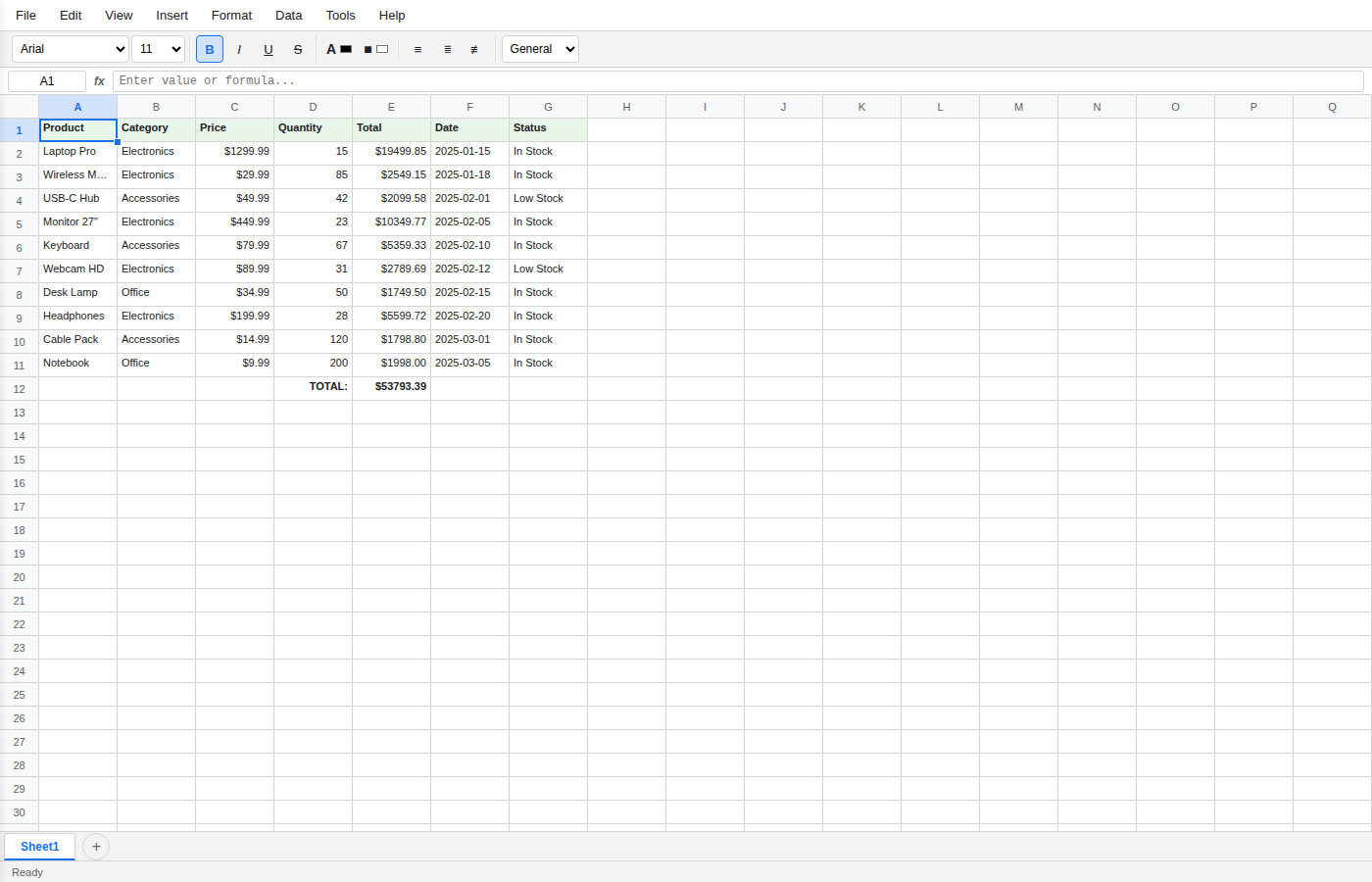
The interface is divided into six main areas, from top to bottom: the menu bar, the formatting toolbar, the formula bar, the grid area, the sheet tabs, and the status bar.
Menu Bar
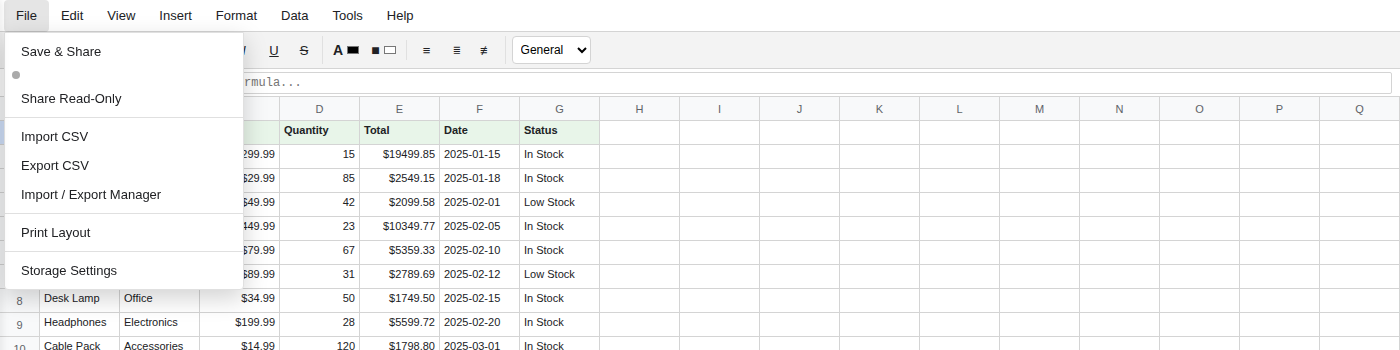
The menu bar runs across the top of the application and contains eight menus:
| Menu | Purpose |
|---|---|
| File | New workbook, open, save, share via URL, import/export (CSV, Excel, JSON, HTML), print layout. |
| Edit | Undo, redo, cut, copy, paste, paste special, find & replace, select all. |
| View | Toggle gridlines, headers, formula bar, status bar, navigation panel. Switch themes (light/dark). Zoom controls. |
| Insert | Insert rows, columns, cells, charts, pivot tables, functions, comments, forms. |
| Format | Cell formatting (number, alignment, font, border, fill), conditional formatting, column width, row height, merge cells. |
| Data | Sort, filter, data validation, text to columns, remove duplicates, descriptive statistics, goal seek, query builder. |
| Tools | Script editor, macros, formula auditing, sheet protection, table designer, visual query designer, report designer, relationship manager, dashboard builder. |
| Help | Help panel, keyboard shortcuts, how-to tutorials, about information. |
Formatting Toolbar

The toolbar sits below the menu bar and provides quick access to the most common formatting actions:
- Font family and font size dropdowns
- Bold (Ctrl+B), Italic (Ctrl+I), Underline (Ctrl+U) toggle buttons
- Text color and fill/background color pickers
- Horizontal alignment -- left, center, right
- Vertical alignment -- top, middle, bottom
- Number format -- general, number, currency, percentage, date, text
- Decimal places -- increase/decrease
- Borders dropdown -- apply border styles to selected cells
- Merge cells -- merge and unmerge selected cells
- Text wrapping -- toggle text wrap within cells
Formula Bar

The formula bar appears between the toolbar and the grid. It has two parts:
- Name box (left) -- displays the address of the active cell (e.g.
C5). You can type a cell address or named range here and press Enter to navigate directly to it. - Formula input (right) -- shows the raw content of the active cell. If the cell contains a formula, this is where you see and edit it (e.g.
=SUM(A1:A10)). If it contains a plain value, the value is displayed. Click into the formula input to begin editing.
When you are editing a formula, referenced cells are highlighted in the grid with colored borders to help you see which cells are involved.
Grid Area
The grid is the main working area of the spreadsheet. It displays cells organized into lettered columns (A, B, C, ...) and numbered rows (1, 2, 3, ...).
- Click a cell to select it.
- Click and drag to select a range.
- Hold Ctrl and click to select multiple non-contiguous cells.
- Hold Shift and click to extend the selection from the active cell.
- Double-click a cell (or press F2) to enter edit mode inline.
- Right-click to open the context menu with options for cut, copy, paste, insert, delete, formatting, and more.
- Drag the fill handle (small square at the bottom-right corner of the selection) to autofill adjacent cells with patterns or series.
Column and row headers can be clicked to select entire columns or rows. Drag the borders between column headers to resize columns, or between row numbers to resize rows.
Sheet Tabs

The sheet tab bar sits at the bottom of the grid area. Each tab represents a sheet in the workbook.
- Click a tab to switch to that sheet.
- Double-click a tab to rename the sheet.
- Right-click a tab for options: rename, delete, duplicate, move, change tab color, protect sheet.
- Click the + button to add a new sheet.
- Tabs can be dragged to reorder sheets.
Status Bar

The status bar runs along the very bottom of the window. It displays:
- Summary statistics for the current selection -- by default, it shows SUM, AVERAGE, and COUNT of the selected cells that contain numbers.
- Cell information -- the number of selected cells or the current cell's format type.
- Mode indicator -- shows whether you are in Ready, Edit, or Enter mode.
Right-click the status bar to choose which statistics are shown (sum, average, count, min, max, numerical count).