Advanced Search
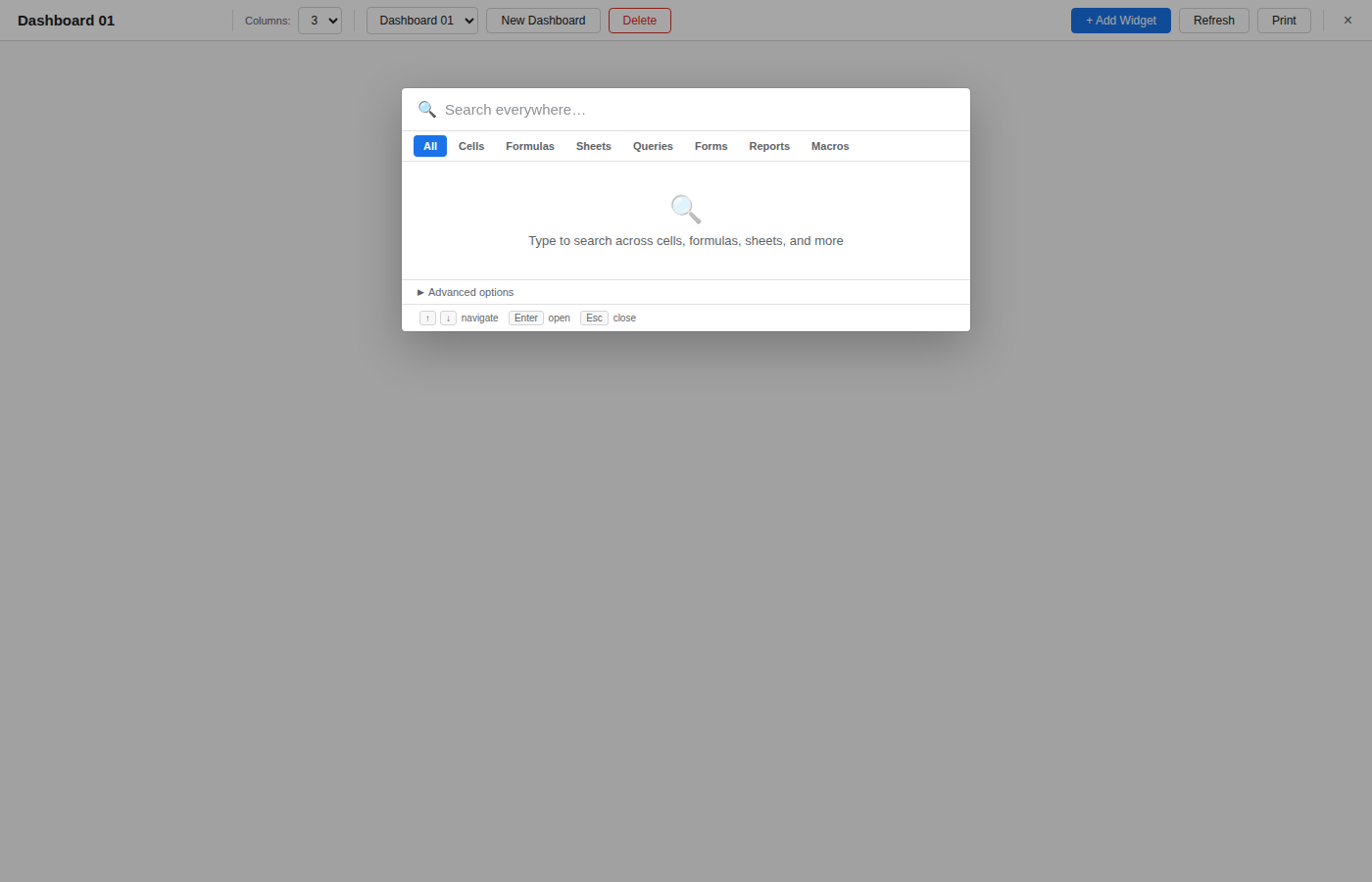
Advanced Search provides a powerful search interface that goes beyond simple find-and-replace. It searches across cells, formulas, sheet names, saved queries, forms, reports, and macros in a single unified panel.
Opening Advanced Search
Press Ctrl+K (or Cmd+K on macOS) to open the search overlay. The search input is focused automatically.
Search Categories
Results are grouped into categories, shown as filter tabs:
| Category | What it searches |
|---|---|
| All | Everything below combined |
| Cells | Cell values across all (or current) sheets |
| Formulas | Formula text in cells |
| Sheets | Sheet names |
| Queries | Saved queries from the Query Builder |
| Forms | Form definitions from the Form Builder |
| Reports | Report configurations |
| Macros | Macro definitions |
Click a category tab to filter results to that type only.
Search Options
Three toggle buttons refine how the search is performed:
- Case Sensitive: Match exact letter casing. Off by default.
- Regex: Treat the search query as a regular expression. When enabled, you can use patterns like
\d+to match numbers or^Totalto match cells starting with "Total". - Current Sheet: Limit cell and formula searches to the active sheet only. When off, all sheets are searched.
Search Behavior
- Search is debounced (200ms delay) for performance on large datasets.
- Up to 50 results per category and 200 total results are returned.
- Matching text is highlighted in the results.
- Results show the cell reference, sheet name, and matched value or formula.
Navigating Results
- Use Up/Down arrow keys to move through results.
- Press Enter to navigate to the selected result (selects the cell and switches to the correct sheet).
- Click any result to navigate directly.
Recent Searches
When the search input is empty, a list of recent searches is displayed (up to 20). Recent searches are persisted in localStorage. Click a recent search to re-run it.
Keyboard Shortcut
Press Escape to close the search panel.