Report Designer
The Report Designer lets you create formatted, printable reports from your spreadsheet data using a banded layout with drag-and-drop elements.
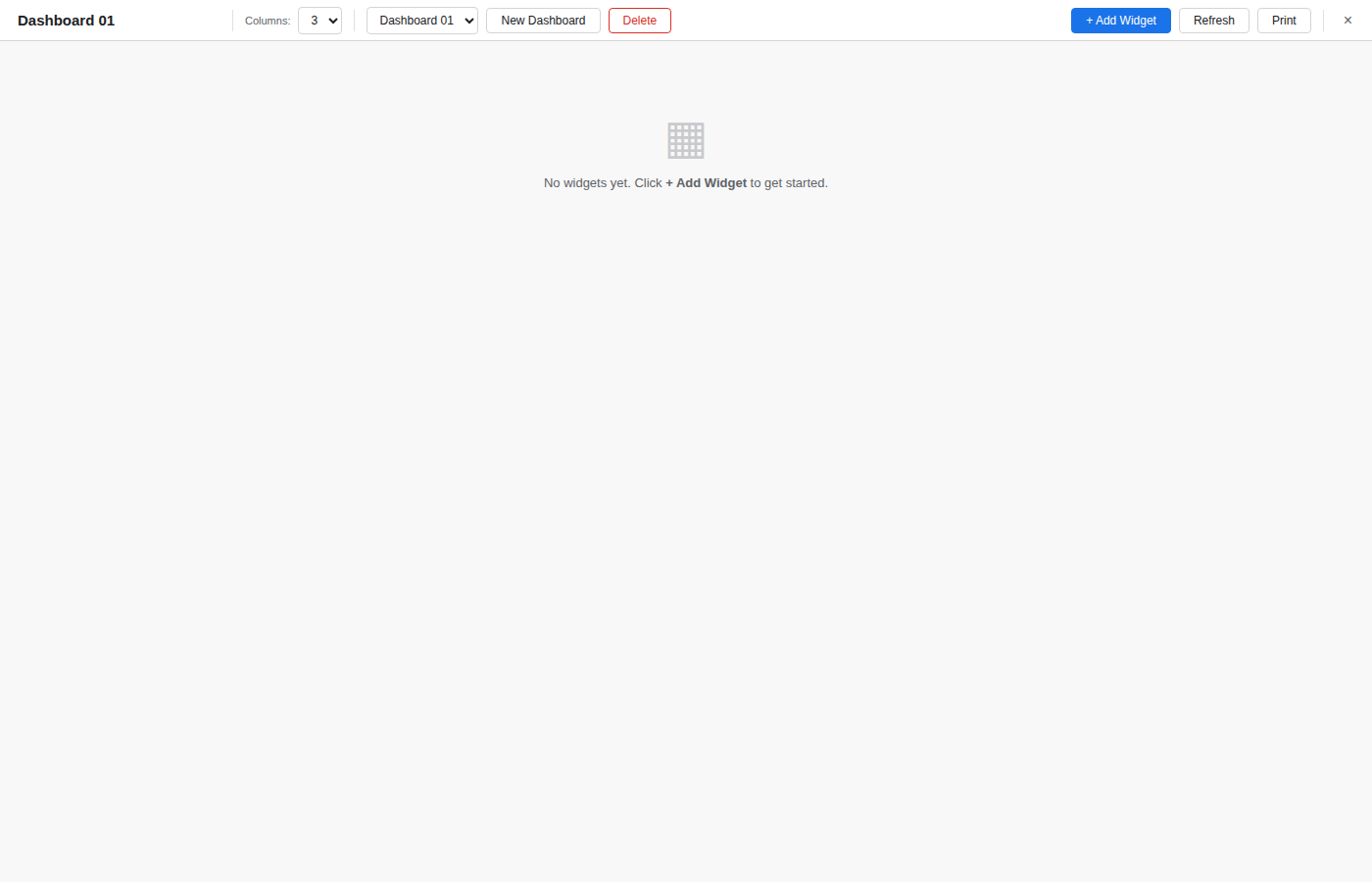
Opening the Report Designer
Access the Report Designer from the Database menu or through the Navigation Panel under Reports. It opens as a full-screen overlay.
Report Structure
Reports are organized into bands (sections), each serving a specific purpose:
| Band | Description |
|---|---|
| Report Header | Appears once at the top of the report. Ideal for titles and logos. |
| Page Header | Repeats at the top of every printed page. |
| Detail | Repeats once for each data row. This is the main content band. |
| Page Footer | Repeats at the bottom of every printed page (e.g., page numbers). |
| Report Footer | Appears once at the end of the report. Useful for grand totals. |
Each band can be collapsed or expanded in the designer. Band heights are adjustable by dragging the resize handle at the bottom edge.
Adding Elements
Use the toolbar to insert elements into any band:
- Label -- Static text (titles, descriptions, column headers).
- Field -- A data-bound placeholder that pulls values from a sheet column.
- Expression -- Computed values such as
=SUM(Amount)or=NOW(). - Line / Rectangle -- Decorative shapes for visual separation.
Elements can be repositioned by dragging and resized by pulling their handles.
Design vs Preview
Toggle between Design mode (edit layout and elements) and Preview mode (see a rendered, paginated view of the report with real data). Use the zoom controls to adjust preview magnification.
Page Setup
Configure the page size (A4, Letter, Legal) and orientation. The canvas dimensions update automatically to match.
Managing Reports
The sidebar lists all reports in the workbook. Use the sidebar buttons to create, rename, duplicate, or delete reports.