Import / Export Manager
The Import/Export Manager provides a unified dialog for bringing data into OpenSheets and exporting it in multiple formats.
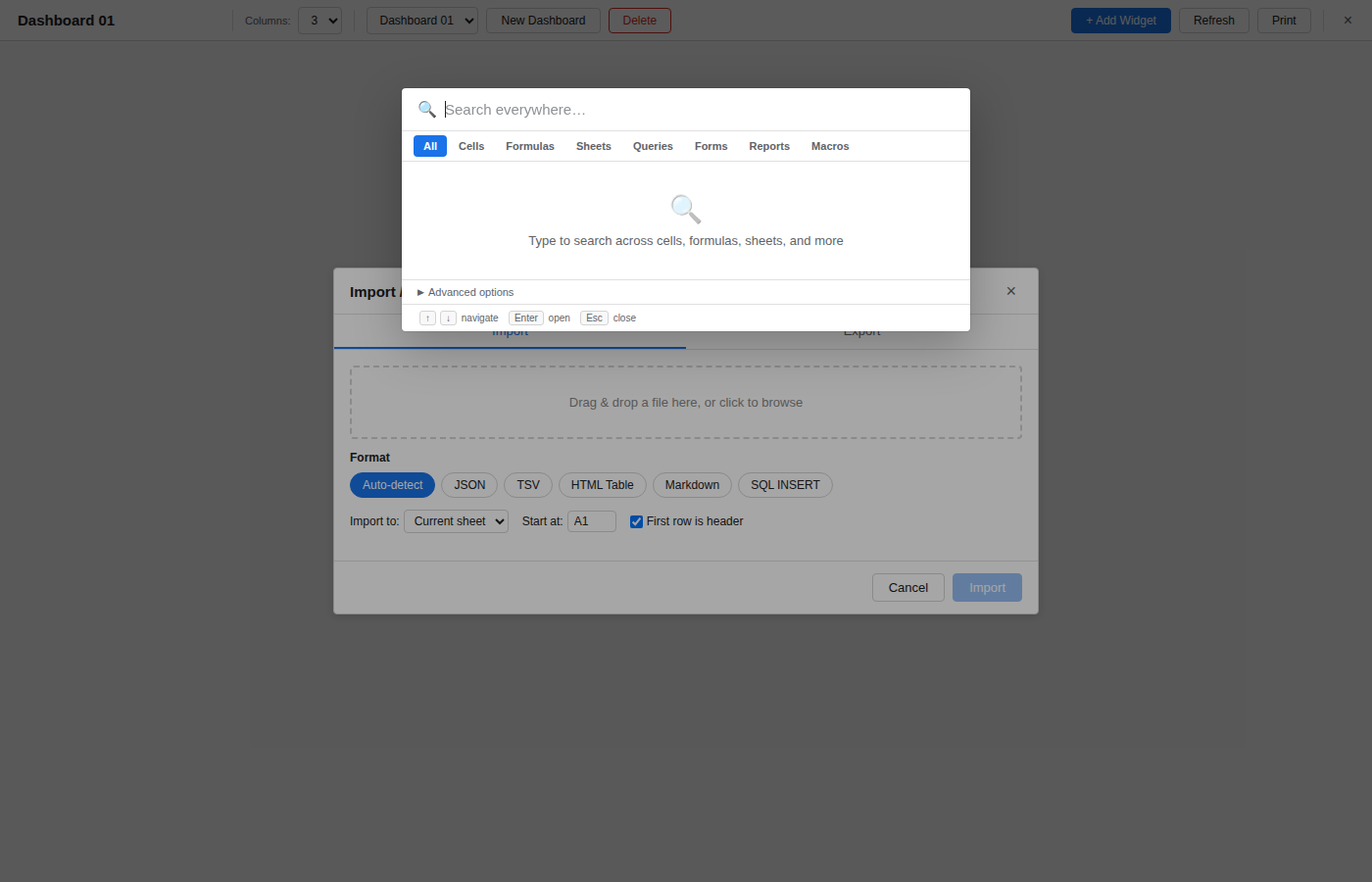
Opening
Access it from the File menu or toolbar. The dialog has two tabs: Import and Export.
Import
Supported Import Formats
| Format | Description |
|---|---|
| Auto-detect | OpenSheets inspects file content and extension to pick the right parser. |
| JSON | Array of objects or a full workbook backup (multi-sheet). |
| TSV | Tab-separated values. |
| HTML Table | Extracts the first <table> from an HTML document. |
| Markdown | Pipe-delimited Markdown tables. |
| SQL INSERT | Parses INSERT INTO ... VALUES statements. |
How to Import
- Drag and drop a file onto the drop zone, or click to browse.
- Select the format (or leave on Auto-detect).
- Choose the target: Current sheet or New sheet.
- Set the starting cell (default A1) and whether the first row contains headers.
- Review the live preview table, then click Import.
Accepted file extensions: .json, .tsv, .txt, .html, .htm, .md, .sql, .csv.
Export
Supported Export Formats
| Format | Description |
|---|---|
| JSON | Structured JSON array or workbook object. |
| CSV | Comma-separated values. |
| TSV | Tab-separated values. |
| HTML Table | A standalone HTML <table>. |
| Markdown | Pipe-delimited Markdown table. |
| SQL INSERT | INSERT INTO statements ready for a database. |
Export Options
- Scope -- Current sheet, selected range, or all sheets.
- Include formulas -- Export raw formulas instead of computed values.
- Include formatting -- Preserve cell formatting metadata in JSON exports.
Workbook Backup
The Export tab also provides Full Backup and Restore from Backup buttons. A full backup saves all sheets, queries, forms, reports, macros, relationships, conditional formatting, and charts into a single JSON file. Restore loads that file back in, replacing the current workbook contents.