Getting Started
This guide walks you through the basics of OpenSheets -- opening the app, entering data, writing formulas, formatting cells, and saving your work.
Opening the App
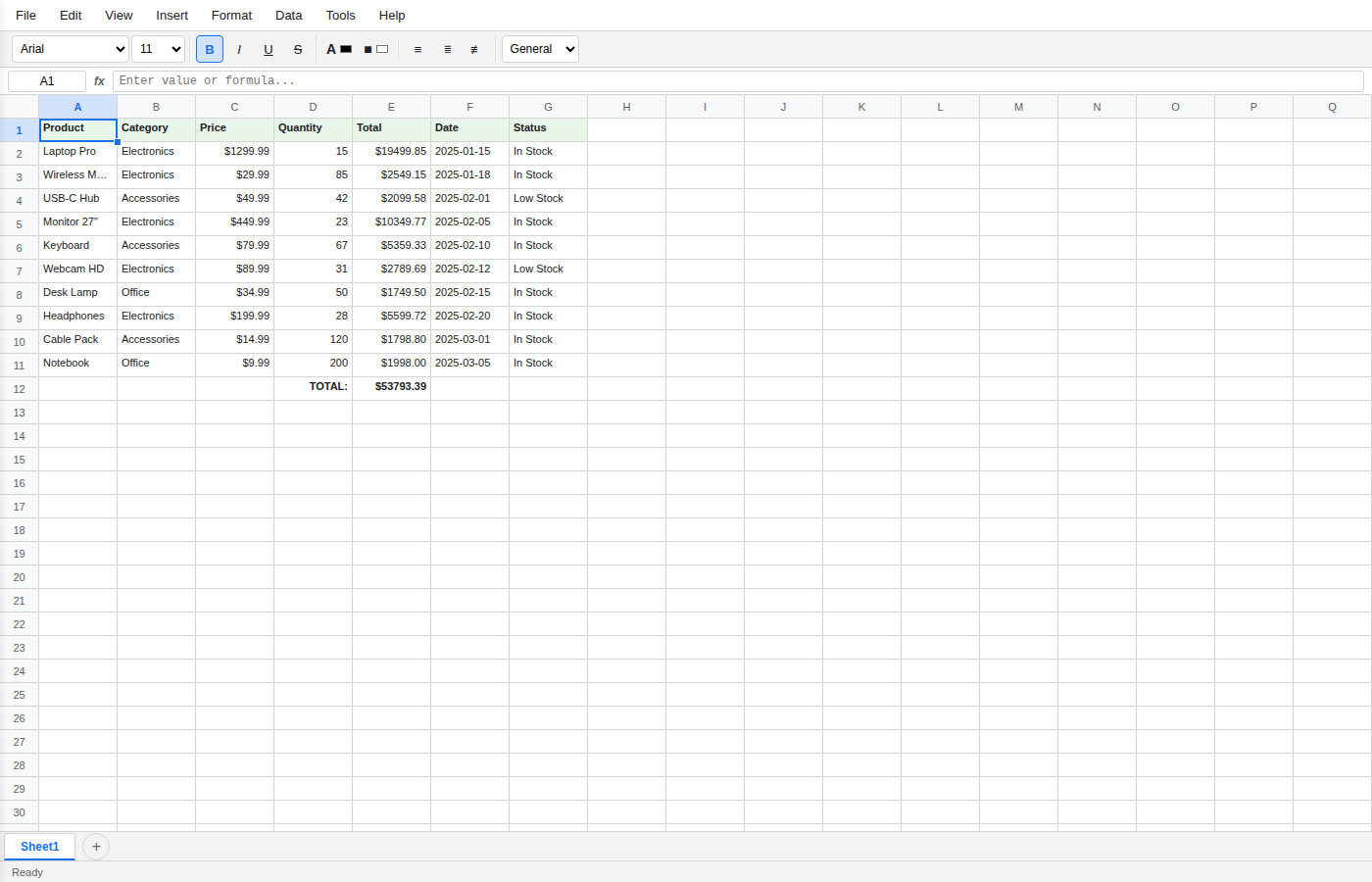
OpenSheets runs entirely in your browser. Simply navigate to the application URL (or open index.html locally). You will see the main interface with an empty spreadsheet ready to use.
Entering Data
Click any cell in the grid and start typing. Press Enter to confirm and move down, or Tab to confirm and move right. Use the arrow keys to navigate between cells.
- Text -- type any string directly
- Numbers -- type a number (e.g.
42,3.14,-100) - Dates -- type a date string (e.g.
2025-01-15)
You can also paste data from other applications using Ctrl+V.
Using Formulas
Click a cell and type a formula starting with =. The formula bar at the top shows the formula for the active cell.

Common formulas
| Formula | Description |
|---|---|
=SUM(A1:A10) |
Sum a range of cells |
=AVERAGE(B1:B20) |
Average of a range |
=COUNT(A1:A100) |
Count numeric values |
=IF(A1>10, "Yes", "No") |
Conditional logic |
=VLOOKUP(A1, D1:E50, 2) |
Look up a value in a table |
=MAX(A1:A10) |
Largest value in a range |
=MIN(A1:A10) |
Smallest value in a range |
=CONCATENATE(A1, " ", B1) |
Join text strings |
Formulas update automatically when referenced cells change. OpenSheets includes over 200 built-in functions -- see the Formulas Reference for the full list.
Basic Formatting
Select one or more cells, then use the formatting toolbar to:
- Bold / Italic / Underline -- standard text styling
- Font size and family -- change the typeface and size
- Text color and fill color -- apply foreground and background colors
- Alignment -- left, center, or right align cell content
- Number format -- currency, percentage, date, etc.
- Borders -- add cell borders
- Merge cells -- combine multiple cells into one
You can also access formatting via Format in the menu bar, or right-click for the context menu.
Saving and Sharing
OpenSheets provides several ways to persist your work:
- Browser storage -- your workbook is automatically saved to local storage. It will be there when you reopen the app in the same browser.
- URL sharing -- go to File > Save & Share to encode your workbook into the URL hash as a compressed base64 string. Copy the URL and send it to anyone -- they will see your exact spreadsheet. This works even when running locally.
- Supabase cloud storage -- connect to a Supabase instance for persistent cloud saves (see Supabase Storage).
- Export -- use File > Export to download your workbook as CSV, JSON, Excel, or HTML.
Keep your share link safe
OpenSheets stores your data in your browser's localStorage. If you clear your browser data, your local copy is gone. Always generate a share link using File > Save & Share and keep it somewhere safe. The share link contains your complete spreadsheet and is the only way to recover your work if your browser storage is cleared.
Next Steps
- Interface Overview -- learn what each part of the screen does
- Formulas Reference -- explore all available functions
- Charts -- visualize your data
- Keyboard Shortcuts -- work faster with hotkeys