Visual Query Designer
The Visual Query Designer lets you build database-style queries by selecting tables, choosing fields, and specifying criteria -- all through a graphical interface.
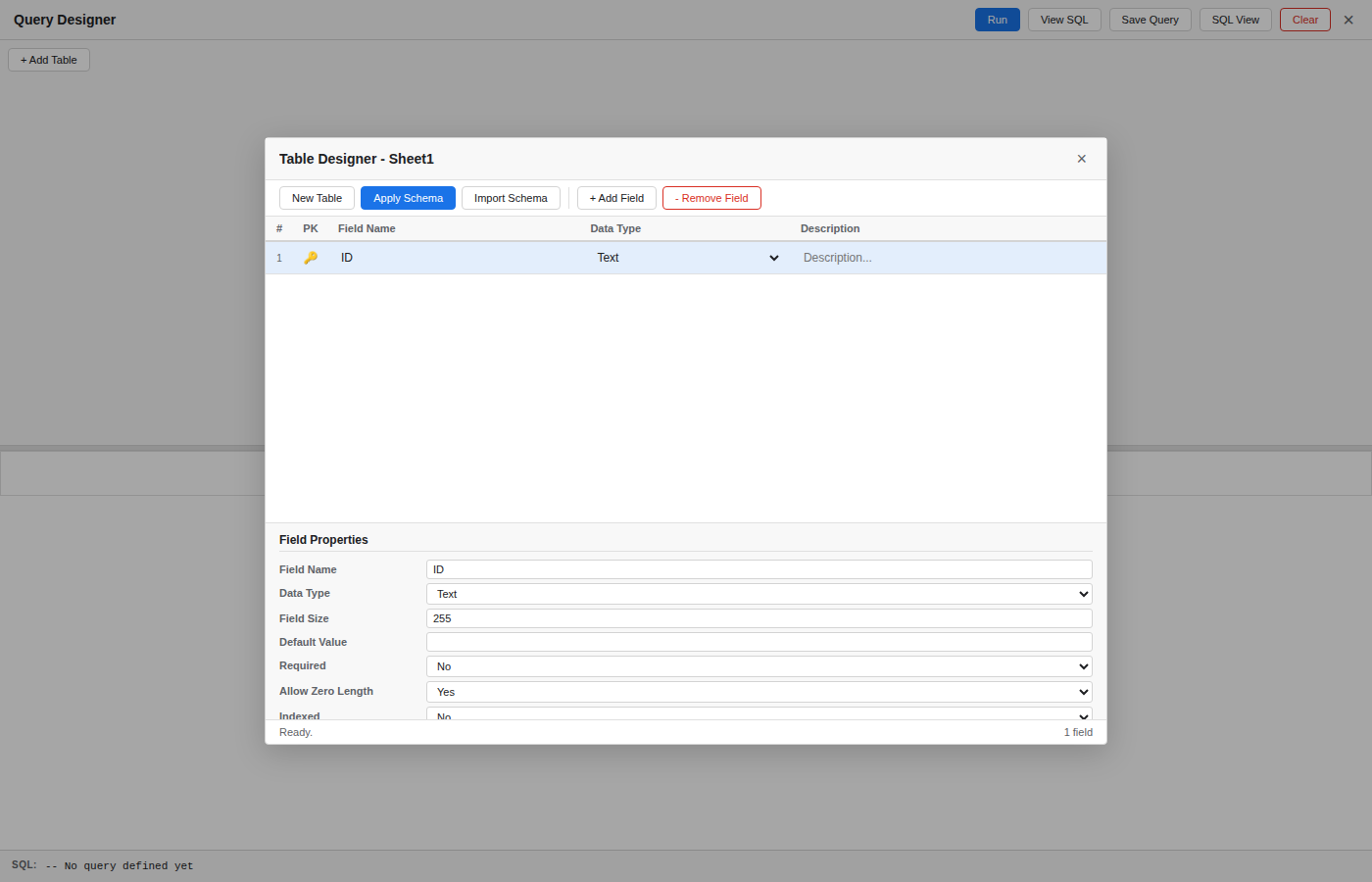
Layout
The designer is split into two resizable panes:
- Upper pane (Table Canvas) -- Drag table boxes representing sheets. Each box lists the available columns. You can reposition tables freely on the canvas.
- Lower pane (Query Grid) -- A spreadsheet-like grid where you configure which fields to include, how to aggregate, sort, filter, and display them.
Adding Tables
Click Add Table and select a sheet from your workbook. A table box appears on the canvas showing all column names. You can add the same sheet more than once with different aliases for self-joins.
Configuring Query Columns
Each column in the query grid represents one output field. The grid rows are:
| Row | Purpose |
|---|---|
| Table | Which table (sheet) the field comes from. |
| Column | The specific column within that table. |
| Aggregate | Optional function: Group By, Sum, Count, Avg, Min, or Max. |
| Sort | Ascending, Descending, or none. |
| Show | Whether the field appears in the result output. |
| Criteria | A filter expression for the field (e.g., >100, ="USA"). |
| Or | Up to three additional OR criteria rows for alternative conditions. |
Running the Query
Click Run to execute the query against the live sheet data. Results are displayed in a preview and can be output to a new sheet.
Removing Tables and Columns
Right-click a table box on the canvas to remove it. Select a column in the grid and use the Remove Column button to delete it from the query.